

Slack Alerts
Get Slack Alerts about critical moderation events and performance metrics. Keep a close watch on task volume, stale tasks, action triggers and more.
Slack Setup
- Set up Slack Bot within your workspace. Refer to Slack documentation here: https://api.slack.com/start/quickstart
- On the Moderation Dashboard, navigate to the Alerts tab on the Settings page to configure your Slack Settings.
- Go to Delivery Channels. Beside Slack Token, input your Slack Bot Token and click Save. Bot tokens start with "xoxb-".
- Once the token is configured, you can create Delivery Channels. Specify the channel name, delivery type, and Slack channel.
NotePlease ensure the Slack Bot is invited to the channel you want to send alerts to.
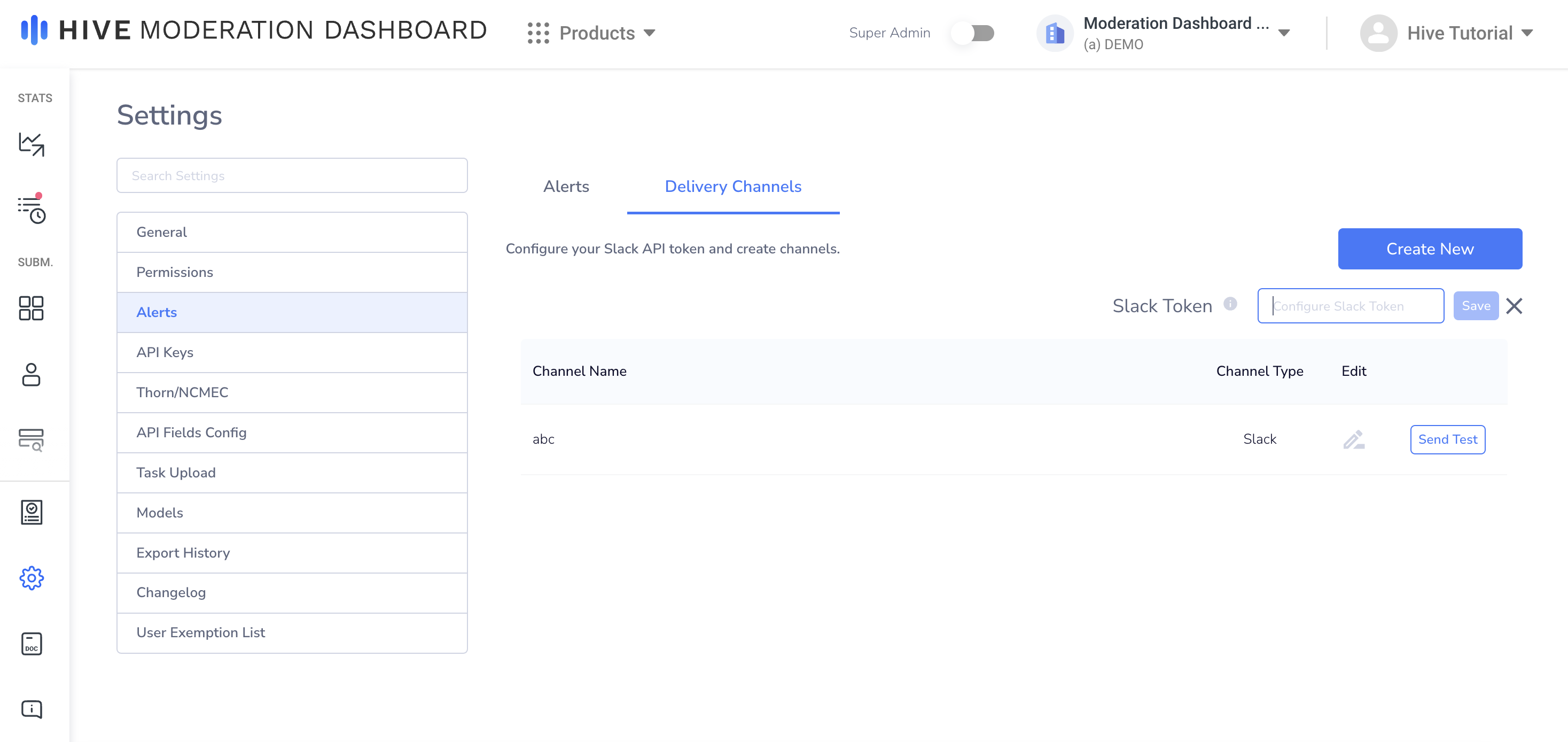
Configure Slack Token
Creating an Alert
To create a new alert, click the Create New button underneath the Alerts tab.
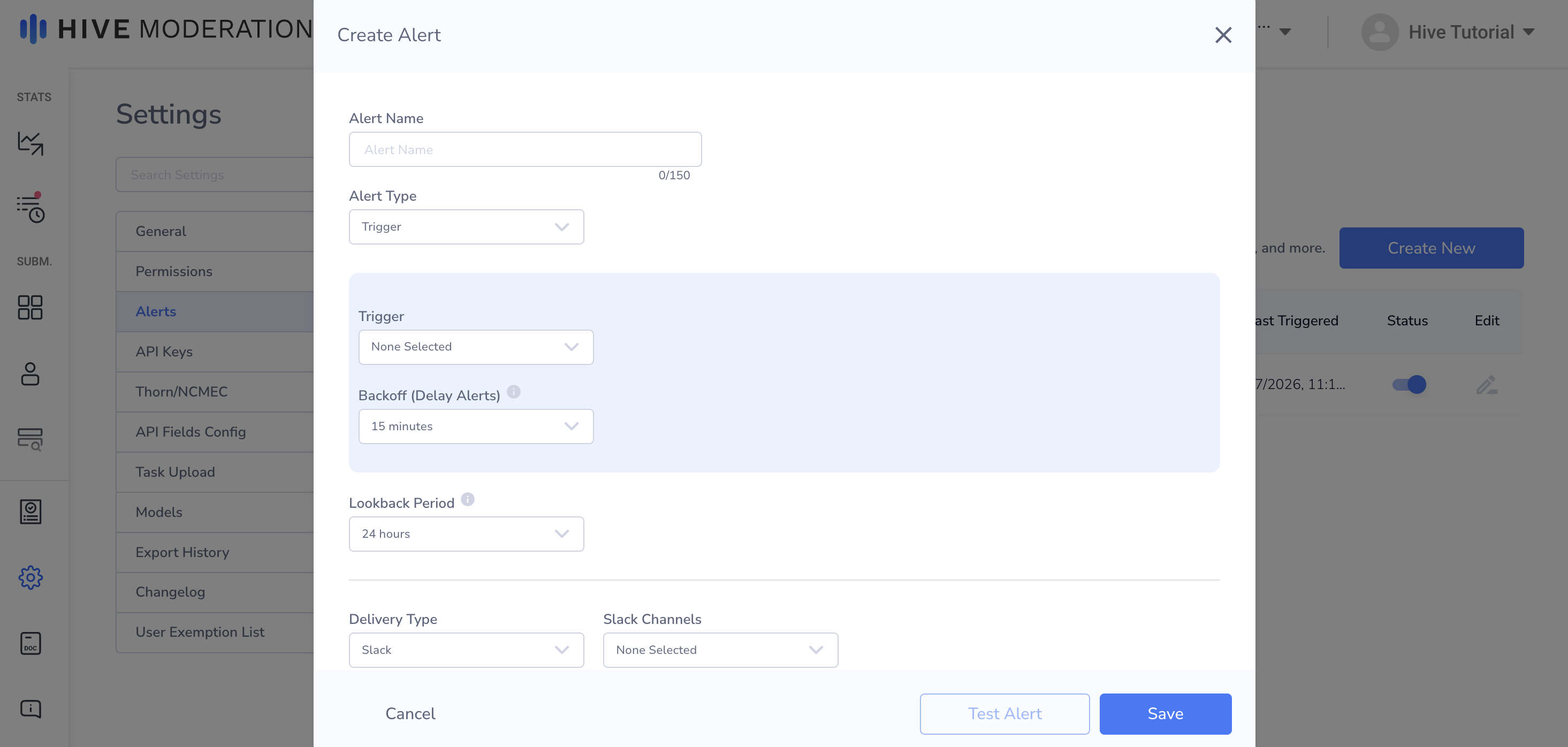
You can configure the Alert Type, which determines when alerts are sent. The following types are:
- Trigger: Alert is sent when a certain condition is met. A list of trigger types can be found below.
- Daily: Alert is sent daily.
- Hourly: Alert is sent hourly.
Trigger Types
- Number of Tasks: Number of tasks in a given Review Feed currently above or below a certain threshold.
- Task Volume: Number of new tasks in a given Review Feed currently above or below a certain threshold.
- % Tasks Acted on per Review Feed: % of Tasks acted on in a given feed across all moderators above or below a certain threshold.
- % Tasks Acted on per Moderator: Moderator % of Tasks acted on for all Review Feeds above or below a certain threshold.
- Stale Tasks: Alert when a task has been in the review feed for more than a specified time range.
- Booted Tasks: Alert on the number of tasks booted from the Review Feed.
- We allow a total of 10K tasks to be in the Review Feed at a given time. Once new tasks enter the feed, older tasks will be kicked out of the feed without moderation when the Review Feed exceeds 10K tasks.
- # of Manual Actions Taken: Number of moderator-performed actions above or below a certain threshold.
- # of Automated Actions Taken: Number of rule-triggered actions above or below a certain threshold.
- # of Failed Actions Taken: Alert for number of actions that received a failed callback response above or below a certain threshold.
Updated 8 months ago