

Using Hive's VLM in Moderation Dashboard
How to create and use custom Hive VLM prompts with Moderation Dashboard.
The VLM Classes section on Moderation Dashboard allows you to create and manage custom prompts to use with Hive’s Vision Language Model (VLM), a multimodal model capable of processing text and image inputs simultaneously.
Adding a V3 API Key to Moderation Dashboard
Using Hive’s VLM requires a V3 API key. To obtain a V3 API key, refer to the following documentation. To map this key to your Moderation Dashboard application, navigate to Settings → Models, and input the key in the text box marked V3 Organization API Key.
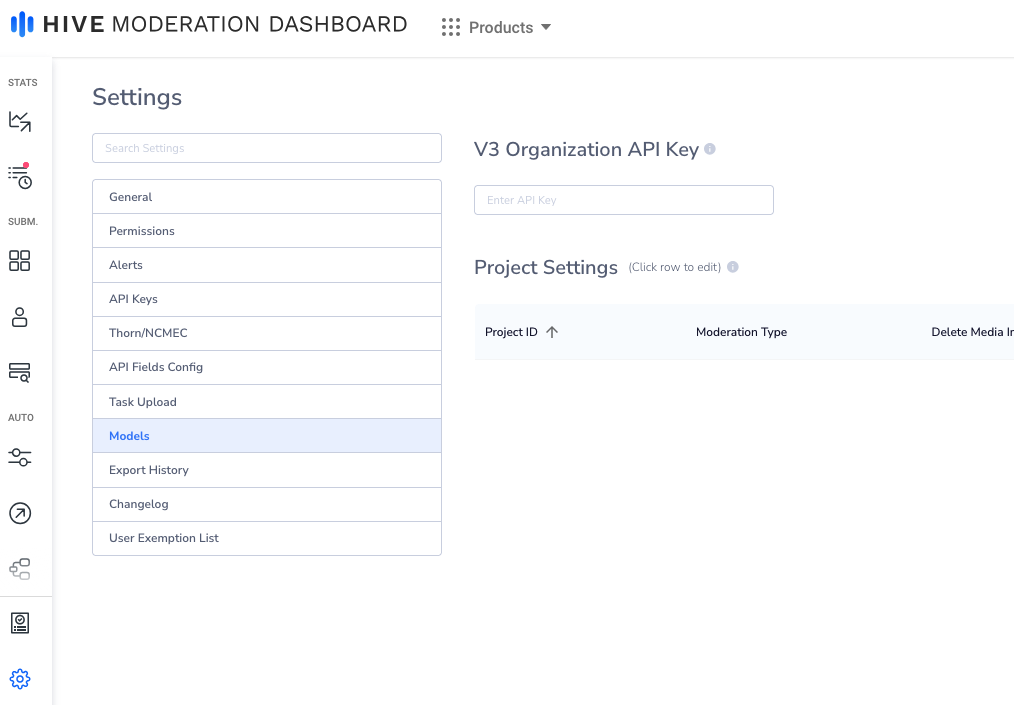
V3 Organization API Key
Creating a VLM Prompt
To create a prompt, click the VLM Classes button at the top right of the Thresholds page.
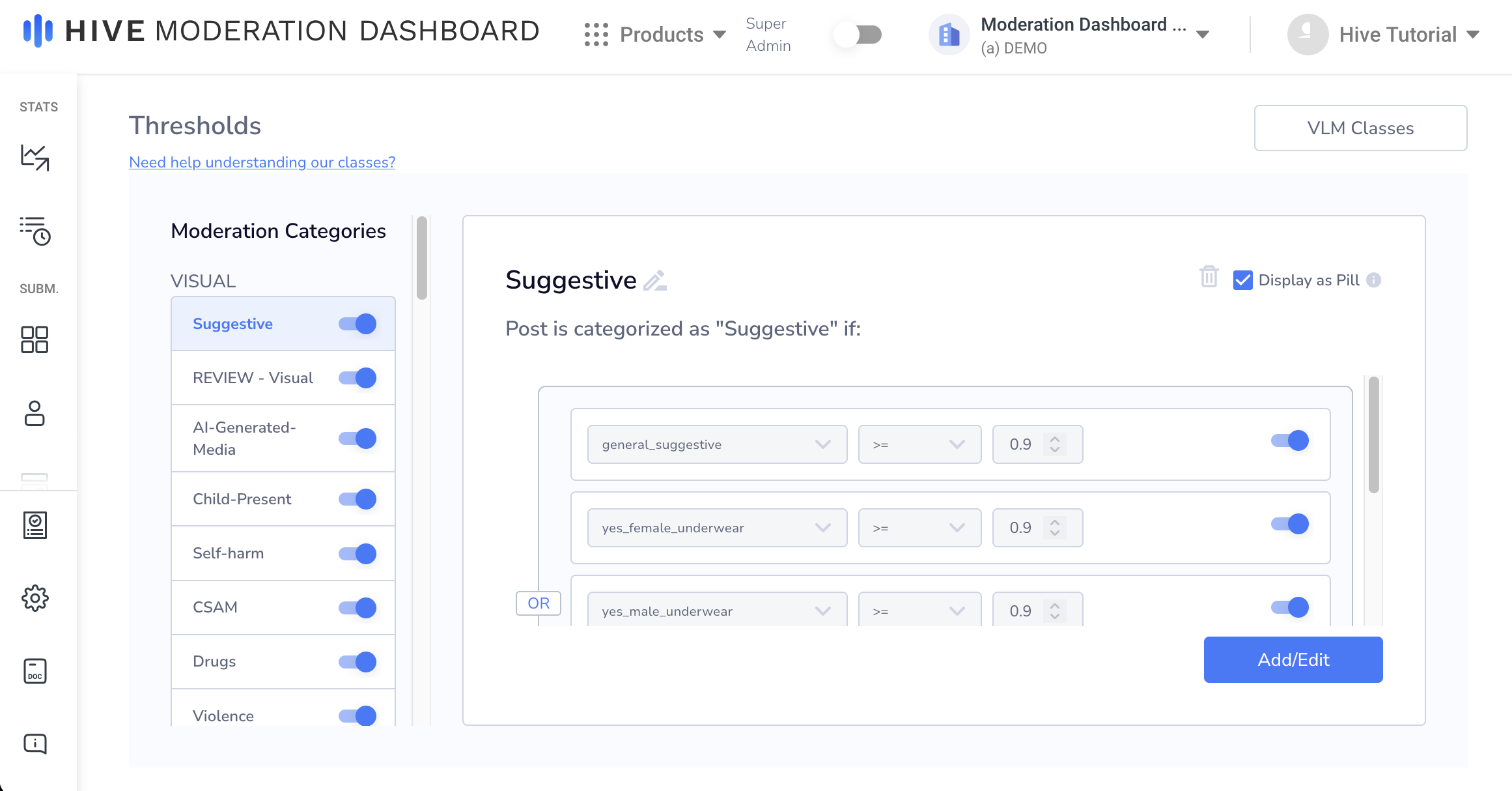
VLM Classes
This will open a new window titled VLM Prompts. Here, you can manage and create VLM prompts from within Moderation Dashboard. To create a new VLM Prompt, click on the Create New button. A Create Prompt window will open. In addition to the prompt itself, you will be asked to input a Prompt Name, API Value, and classes.
- Your prompt will instruct the VLM on how to classify your images. Sample prompts and prompt creation tip are available in the Prompt Builder docs.
- To submit posts to a specific prompt, you will use the API Value you’ve assigned to it, which cannot be changed after prompt creation.
- The classes field allows you to specify what values the model should return. The Single selection next to the class input means the model will only output one of the values in the class value field, and the Multi selection means the model can output multiple values from the class value field.
Below is a sample prompt (using the NSFW prompt in the Prompt Builder):
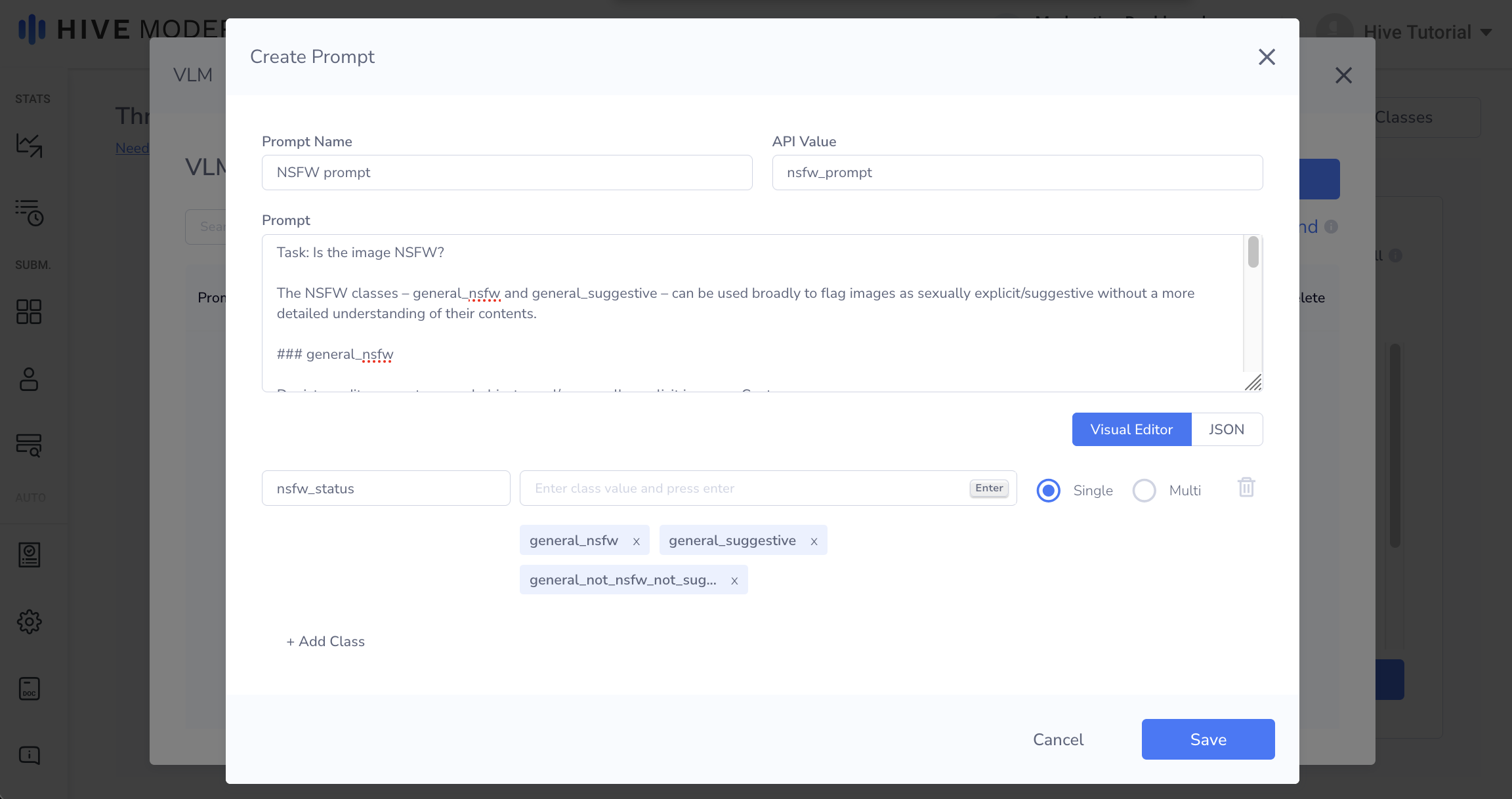
Sample NSFW Prompt
Submitting to VLM Prompts
To submit to a VLM prompt, include the prompt’s API key in the models array. The prompt can be submitted like any other model, and can also be used alongside other models.
Below is an example cURL request with the example NSFW prompt:
curl --request POST \
  --url https://api.hivemoderation.com/api/v2/task/sync \
  --header 'Authorization: token <dashboard-api-key>' \
  --header 'Content-Type: application/json' \
  --data '{
    "patron_id":"hive-test-patron-663461",
    "post_id":"hive-test-663461",
    "url":"https://thehive.ai/images/afc184a.jpg",
    "models":["nsfw_prompt"]
  }'
Note:VLM prompts can only be submitted to the Moderation Dashboard V2 sync endpoint.
Below is an example response for the above cURL request:
{
  "task_ids": [
    <task_id>
  ],
  "post_id": <post_id>,
  "user_id": <user_id>,
  "project_status_map": {
    "nsfw_prompt": {
      "moderation_type": "vlm",
      "task_id": <task_id>,
      "status": "success"
    }
  },
  "content_id": <content_id>,
  "triggered_rules": [],
  "triggered_background_rules": []
}
For more info on the V2 sync route parameters/response, please refer to the Moderation Dashboard v2 sync endpoint documentation.
VLM Thresholds
Creating VLM thresholds is similar to creating thresholds for other models in Moderation Dashboard. To create a threshold, scroll down to the VLM section on the Thresholds page and select the class and values you want the threshold to trigger for. VLM thresholds can be applied in the same manner as any other model’s thresholds.
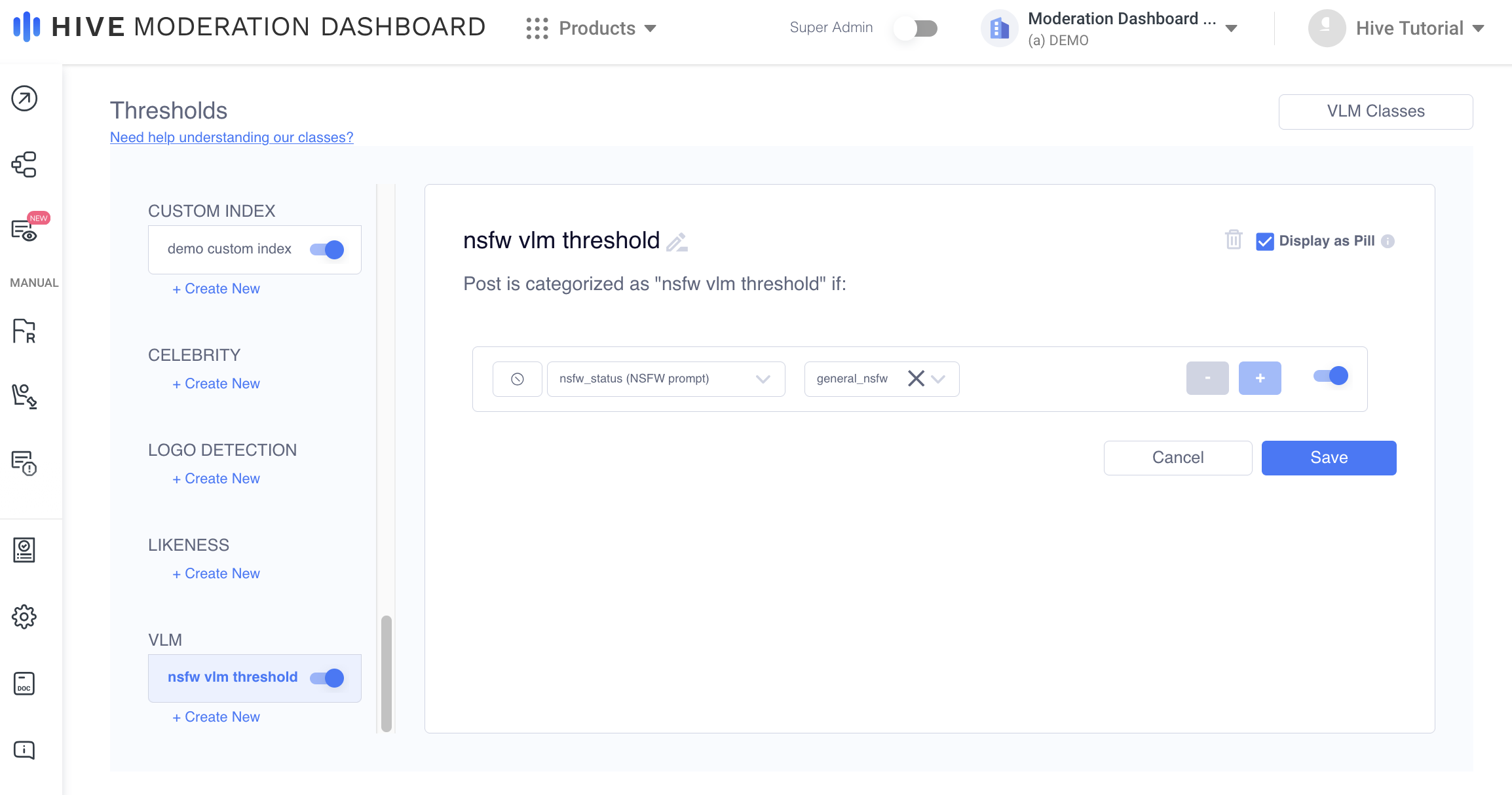
VLM Thresholds
Note:VLM thresholds will trigger if any values selected are present in the model response.
If a prompt’s class value is being used in a threshold, the class cannot be edited, and the prompt cannot be deleted until the value is removed from the threshold. For example, in the “nsfw vlm threshold” created above, the nsfw_status class cannot be edited, and the NSFW prompt cannot be deleted until the condition with general_nsfw is removed.
For more information on Thresholds, please refer to the following documentation.
Updated 6 months ago